Tuesday, October 9, 2018

Guardian BuzzAway Wild Tomato Mosquito Repellent Review

I bought this to use recently and it's so ineffective I just had to post a quick review.

This product is cheap (about RM10 per bottle) but save your money, it doesn't work. It also stinks! Very overpowering smell. I think there's one other review out there that also gives this a thumbs down.

It says on the bottle it offers 8-hour protection. Tall claim that one! It didn't even protect me for 8 seconds!

I covered my arms and legs with it before heading outside and I was still attacked by a million mosquitoes.

It probably only works if you empty the entire bottle on yourself.

I think the most effective natural DEET-free insect repellent is Mosiguard. Never lets me down and truly offers lasting protection, as long as you reapply if you sweat too much.

Guardian does have one very good house-brand product, their SPF-50 sun lotion. Cheap and very effective. As for this product, forget about it.

Monday, May 29, 2017

Malaysia Airlines’ New Booking System: Much improved!

Here’s a quick review of the new Malaysia Airlines booking system.

The old one had a lot of problems and shortcomings. This new one is much welcomed with lots of improvements.

- You can now mix your classes or fare types in one booking. For example, promo fare + flexi fare, or economy on the outbound and business on the inbound. UPDATE: Seems like they've removed the ability to mix cabin classes in one booking.

- You can also book direct check-through tickets and select any combination of flights with different layover times. The old system, you were presented with what MH figured best suited you so sometimes you'd get very short connecting times for a flight from KCH to KUL (1h35m only, you'll miss your connecting flight if the KLIA aerotrain breaks down again or the incoming flight is delayed).

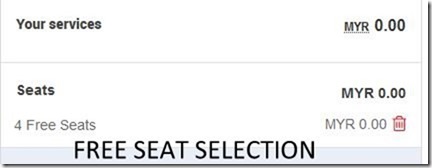
- Seat selections at time of booking are now all FREE! Hooray! Before, you had to pay at time of booking but selection was free if you did a web-check-in before departure.

- Maybank2u payments are currently down so only paypal, cc and cimbclicks are available.

This is a much better system than the old, archaic one. Makes booking tickets a lot easier. Unfortunately, if you like booking tickets with their app, that one's still stuck on the old system.

Their Enrich program will also see some changes in June.

MH1

MH5


MH3

MH4

MH2

Saturday, February 4, 2017

Cathay Pacific CX724 KUL-HKG flight review

cathay pacific a330

Wow, I have not updated my blog in such a long time!

Here's my review of Cathay Pacific Airways flight CX724, Kuala Lumpur to Hong Kong (Jan 2017). This was my first time flying with Cathay and I was really looking forward to it. This flight took about 3.5 hours.

Flight was serviced by a 5-year old Airbus A330. It was very comfortable flying on this relatively new aircraft, especially since there were many empty seats towards the back of the plane.. Very clean interior,. I liked the blue seats too, which gave the interior a modern, clean and fresh look (I dislike SQ's brown earth tones, which make even their new planes look tired and old). Lavs were also clean.

The IFE features a wide selection of movies and TV Shows, games and other programs. Cathay fully utilizes a touch system on this new plane and therefore, no wired remote is provided. I am not sure how phone calls are made without one, perhaps they have to approach the crew to utilize a special phone?

Meal service began shortly after the seatbelt sign went off beginning with the usual peanuts and drinks. Followed by the main meal. No menu is provided but we were given two choices. No appetizer or salad but meal quality was quite good. Hot beverages were served after the main meal service.

Water is handed out in small bottles and if you need more, just ask one of their friendly FAs.

In the seat pocket were the usual inflight shopping catalogue and related materials, Cathay’s inflight magazine (which was made with recycled paper, good!) and a sick-bag. The magazine wasn’t very interesting, but it did provide useful information. It also contained the month’s IFE program choices.

I tried watching the much-talked about highest grossing anime ever, "Your Name" but could not concentrate and switched it off (I finished watching it on the flight home) and took a nap.

An hour before landing, I woke up to a commotion at the back of the plane. There were about 6 FAs surrounding a lady passenger who apparently had obstructed an FA in discharging her duties. I can't provide any more details as I am not really sure what transpired before that.

Upon arrival, ground staff came to meet her and more commotion ensued. The language barrier was also a factor, I believe. I was surprised that on a Hong Kong bound flight filled with Chinese passengers, very few of the crew spoke Mandarin.

Anyways, the FA whom she supposedly had a run-in with was actually very professional and friendly, always smiling while going about her duties on our side of the cabin. Overall, I found the service quality very good.

cathay pacific a330 IFE
Good selection of programs. No wired-remote is provided and the IFE fully utilizes a touch screen for menu navigation and selection.

cathay pacific a330 peanuts 1
Meal service began shortly after the seat-belt sign was switched off.

cathay pacific a330 KUL HKG meal
I saw a Brahim’s truck loading up the flight while it was in preparation for boarding. Food quality was good and although no menu was provided, passengers were offered two choices along with a selection of drinks, juices and two types of wine.

cathay pacific a330 window view
The flight took about 3.5 hours.

cathay pacific a330 flight map
Approaching Hong Kong international.

cathay pacific a330 seat 
Clean seats.

cathay pacific a330 leg space
Good leg-space.

cathay pacific a330 IFE 2
No wired remote. A USB port is provided but it didn’t work properly (neither did the port in the next seat) so I was not able to charge my phone.

Have you flown with CX before? Did you like your experience?

Next up, my review of the connecting flight to TAO with Cathay Dragon.

Tuesday, May 26, 2015

Lenovo K3 Note Review by Sarawak Lens

If you are reading this now, chances are you arrived here by searching for a genuine user review of the new Lenovo K3 Note (K50-t5), correct? This is one of the most sought-after phones in the MYR500-MYR800 price bracket, offering top-notch, flagship-like performance for the low price of only RMB899 (about MYR590, excluding GST).

Well, you have arrived at the right place as I have been using this phone extensively, for more than a week now and have come to know exactly what I like or dislike about it.

So I am going to skip the usual introduction, features and hardware overview (which you can get at countless other sites which offer just that but little in terms of actual user comments/opinions) and jump right into the pros and cons divider into three sections - like, dislike and hate.

LIKE
The cameras are surprisingly very good! Antutu reports that the phone uses an Exmor RS sensor, I do not know if this is true as very little is known about what sensor Lenovo put in there. But judging by the pictures taken with the 13 megapixel main camera (F/2.0 aperture), I’m inclined to believe this. The front cam (probably uses an Omnivision sensor) also produces pretty good photos and will do just fine for taking selfies and video chat. The camera does sometimes struggle to find the right focus and I have had more than one out of focus shot. Camera samples at bottom of review.

The phone comes with Lenovo’s music app which gives you free listens and allows for free downloads of music at 128kbps bit-rate quality. However, note that the phone I have is meant for the Chinese market and therefore, most songs are in Chinese. A search feature is included; however, a big downside is that while the artist library is extensive, a lot of the artists listed do not have many songs available for streaming or downloading. But it’s a nice app for those who like Chinese artists/music.

Both sim slots allow for LTE/4G/3G/2G. However, only one slot will be available in 4G/3G mode at any one time. If you have two LTE or 3G enabled sims in both slots, the other will always be in 2G mode only. It doesn’t matter which as you can assign which sim to enable LTE.

I also considered the Meizu M1 Note but I am happy I did not get that because it does not have a micro-sd slot which the K3 Note does. My phone has 16GB of storage with nearly 5GB taken up by the Android 5.0 OS. Anyone who plays 3D games or store and listen to a lot of music on their phones, or like to snap photos and take movie clips will know that 16GB fill up VERY QUICKLY! Therefore, a micro-sd card slot is a definite must. The phone supports cards up to 32GB in size.

Removable battery! The Meizu M1 Note has a non-removable battery and that too was a deal-breaker for me. I like the option of carrying around a spare battery or the ability to just quickly remove the battery in case the phone jams or hangs.

Phone charges up relatively quickly unless you use a slow charger such as one from an old phone. You should have a full charge in about 2 hours from around 10%.

The phone also supports USB OTG (tested and working well). You can also double tap on the screen to wake it up. I use this feature a lot and am so used to it after a week that when I pick up a regular phone, I try to double tap on the screen too when it turns off.

When you keep the phone it in your pocket, there is a pocket mode which keeps the screen from registering accidental touches or taps. This however, causes the phone to sometimes not register a double tap when you take it out of your pocket or if you are in a dark room. You have to double tap again or sometimes 2-3 more times to wake it up.

DISLIKE
The screen is an IPS screen but does not behave like one. In fact, it has poor viewing angles and behaves like an old LCD-type of screen. Whites on this screen when viewed directly from the top is a little too “cool” for my liking. There is no way to adjust this in settings. When viewed from even a slight angle, the colour tint changes. On my phone, when viewed from the left, it’s warmer and has a red tint. Viewed from the right it looks bluish. But the changes in colour aren’t that bad enough to bother me too much.I think for an IPS screen, the viewing angles should be a lot better. Overall, I rate the screen quality as poor.

The phone comes with no accessories. Mine came with only a stock Lenovo charger (2.0A quick charger) in a plain brown box. Not a big deal really, as I have many earphone sets from previous phones! But something for you to take note.

Phone heats up quickly! If you start downloading an app or song or large game files, you will quickly find the phone becoming rather uncomfortable to hold. I measured temps as high as 42 degrees Celsius on the upper half of the phone. While it isn’t hot enough to fry an egg, it will definitely feel uncomfortable in your hands. Fortunately, the phone also quickly cools down when it returns into idle mode (about 33C to 35C). I did not find the phone to heat up too much playing a 3D game like Dungeon Hunter compared to using 3G data.

There is no option in settings to select the type of network connection you want. You cannot force a 2G or 3G only connection, for example. You need to use a third party app to do this and fortunately, I found a free app simply called “Network” in the google playstore that does this without having to root the phone.

The phone has trouble holding onto a 3G signal. When I was away for the weekend, I brought two phones with me, a cheap Alcatel and my new K3 Note. The Alcatel had no trouble finding a 3G signal and holding onto it while the K3 Note would be in 3G mode for only a minute or two then switch to the stronger 2G signal. This was even though the 3G signal was fairly strong as well. This really annoyed me and at the time, I hadn’t discovered the Network app mentioned above. I ended up placing my sim card in the Alcatel and turned on wifi tethering so I could surf faster on the Lenovo.

VibeUI. Really dislike this iOS-like UI! Installing other launchers caused some problems such as not being able to add widgets to the home screen without settings or something else crashing.

Lenovo’s stock camera app is quite limiting for people who like to tweak their cameras a bit before taking a photo. There is no way to select picture sizes or picture/JPEG file quality. Changing things like ISO and exposure compensation could also have been made a little easier.

One more thing I dislike is how the camera tends to use a lower ISO and slower shutter speed even for scenes which need a faster speed and higher ISO to avoid hand shake such as indoors. There is no manual option to change shutter speed.

HATE
By far the worst problem I have with this phone is the apparent inefficient memory management or possible memory leak. Starting up the phone, I get a good amount of ram free (about 1100+MB or 60% free). Using popular everyday apps such as Firefox or Chrome, Whatsapp and Facebook will quickly cause this free ram to go down to just 10% available! This then results in lag and it terribly spoils the experience. The phone has also jammed (hanged) 3 or 4 times when I first started using it. My K3 Note beats all 2014’s flagships and come in an impressive third after the Samsung Note 4 and Meizu MX4 with 45000+ Antutu points but all that means nothing if there is very bad lag! UPDATE: After updating from 1511 stock rom to newer roms such as 1522, 1524 and currently, 1529 (as of August 2015), the lag issues have disappeared.

Lenovo installs annoying bloat-ware which they made into system apps that you cannot remove without rooting and voiding your warranty. For example, Clean Sweep Master is *&^%$# annoying with its many pop ups and notifications! There’ were also two stock browsers on my phone, UC browser and Baidu browser. Both cannot be removed without rooting.

Viruses and trojan alert! I installed ESET antivirus and it quickly warned that Lenovo’s “User Experience” app was actually a spy program containing a virus/trojan. UC Browser was also reported to contain a virus/trojan!

To get rid of the annoying Clean Sweep Master program and remove the sneaky programs, I had no choice but to root my phone and use System Uninstaller to do the job. The icons still appear after restarting the phone but at least the programs are gone and no more prompts from Clean Sweep asking me to do this and that!

CONCLUSION
It's a nicely made phone, takes nice pictures, has a decent full-HD screen (not so nice viewing angles, though) and is quite fast when you don't have a few apps running. Unfortunately it starts to lag even with just a few regularly used apps up and free ram goes down to just 10%. Should you buy this phone? Perhaps not now. Wait for better roms and if you are located outside China, maybe wait until there is an official version for your country with a localized rom. If you do buy it, hopefully there will be better roms for it in the future. I give this phone a 2/5, if it weren't because of the heat issue and slow-downs/lagging problems, I would give it a 3.5/5.

Camera samples: Click on the photo for larger version.


HDR Mode
HDR ON

HDR OFF
 
The cat photo above was taken with the FRONT CAMERA (5.0 megapixels). Selfies are actually quite nice taken with this camera.
 
Panorama mode, unfortunately doesn't work too well.
 

Night shot (it was very dark!)

Thursday, December 25, 2014

Merry Christmas and have a wonderful new year 2015

Glenorchy Lagoon

Lake Wakatipu

Earlier this year, I was in New Zealand. I have yet to sit down and write about my first and most wonderful trip there. Hope to find time to do so soon. Here’s wishing everyone a Merry Christmas and a Happy New Year!

Wednesday, December 24, 2014

One of my favourite things to do…

kerangas_heath_forest

Immediately after graduating from uni, I worked in a multinational company. Each day, I'd be walking through an office filled with computers and buzzing telephones and fax machines. Today, this is my "office", the jungle is where I go to "escape" urban life, it's where I go to relax and at the same time, learn more about the world around us. I love Sarawak, my beautiful home.

Thursday, July 24, 2014

Licuala species (fan palm) - July 2014

Licuala_fan_palm_sarawak_3

Went exploring this morning (such a hot day! 33 degrees Celsius in the jungle and 45C under the sun!) and found several kinds of palms in this swampy area but I was only interested in the licualas, my favourite! There were so many of them but I believe they are all of the same species though am not sure which. Came upon only one with mature fruits.

Licuala_fan_palm_sarawak_6

The pea-sized fruits (orange-red/brown) have a sweet and juicy mesocarp (husk/pulp surrounding the hard shell which protects the kernel). This suggests that seed dispersal is probably by birds and small mammals (and me!) :-)

Licuala_fan_palm_sarawak_2

The inflorescence pictured above had its growth obstructed by some dried leaves and twigs. It would otherwise grow straight up.

Licuala_fan_palm_sarawak_1

Those found growing in the denser parts of the jungle with little light had very long petioles. Since they're stemless, this would be the only way for them to grow "lanky" to reach for light.

Licuala_fan_palm_sarawak_5

Licualas have palmate leaves and are often called fan palms. This one has very tiny thorns on the lower part of the petiole and is stemless.

Licuala_fan_palm_sarawak_7

Others in more open areas were very bushy with short petioles; some were very dense, such as the one in photo below. I had to separate the mass of leaves and petioles to expose the inflorescence to be photographed!

Licuala_fan_palm_sarawak_4

If anyone knows which species this is, drop a line in the comments section, thanks!

Wednesday, July 23, 2014

MASwings Viking Air DHC6 Series 400 Twin Otter

Maswings DHC6-400_Kinabatangan

MASwings, a wholly owned subsidiary of Malaysia Airlines, has finally replaced all of its museum pieces (DHC6 Series 300) with brand new DHC6-400 planes. The 400 seats the same number of people (19) but is much newer and more modern, powered by a newer engine model and featuring a new cockpit outfitted with modern technology.

Maswings DHC6-400_cockpit

While the older ancient planes only had oscillating fans to keep the cabin cool as well as very hard seats and an interior that felt more like a country bus, these new planes now feature a modern cabin with comfortable seats and yes, gasper vents and LED lights (see photo below). :-)

Maswings DHC6-400_gaspervents_led

Did you know that the Twin Otter has a respectable range of around 1500km or more? It also has a service ceiling of around 7500m and a cruise speed of about 280km/h.

I noticed that MASwings christened their new planes with names of rivers such as Padas and Kinabatangan (the plane in this album, which brought me from Miri to Lawas and back) - both are rivers in Sabah.

Maswings DHC6-400_interior

I have flown on the twin otter with Maswings a number of times now but this was my first in the 400. It was not unsual to see daily goods and sundries packed under the seats in the past as the planes often were the only means to quickly bring in perishable items from the larger cities to the interiors of Sarawak. On this flight and the return, saw no such thing and the cabin remained clean and comfortable.

Maswings DHC6-400_interior_empty

The older planes were notorious for getting into accidents (a few fatal ones). Hope the new planes will have a clean record for as long as they remain in service.

For more info, check out this news article:
https://my.news.yahoo.com/maswings-phases-ageing-twin-otter-090849961.html

Thursday, June 12, 2014

Toshiba FlashAir 8GB SD Card Review

Toshiba_FlashAir_review2

Just got this card for my Olympus OMD-EM5 (about RM70 for an 8GB card, they used to cost so much!). It’s a wifi-enabled SD card which enables easy photo transfers from camera to mobile devices such as phones, tablets and laptops. I can also use it to quickly slowly but conveniently transfer one or two files to my desktop if I need to.

How it works
To use the card, all I had to do was insert it into my EM5, turn on the camera and then on my tablet’s browser, enter the URL “”http:/flashair/” which then brought me to the initial setup screen. On this screen, I had to enter a new SSID name and a password.

Once that was done, each time I wanted to transfer or browse photos on the card, I just had to switch on the camera and connect to the card (the card automatically creates a wifi network) and go to the above URL. However, this method is slow and not practical for transferring multiple files.

For easier browsing and transfers, I use an app by Olympus called Olympus Image Share (OI Share). Toshiba also has an app called FlashAir but it has fewer features compared to Olympus’ app. Both can be downloaded from the Android  Play Store.

OI Share app features include:
1. Transfer multiple files
2. Setting file sizes (instead of full sizes, we can select smaller sizes for quicker transfers)
3. Transfering movie files (.mov on the EM5)

I find the Toshiba’s FlashAir app is sometimes rather problematic and often takes a while to connect.

Pros
Useful for older cameras without built-in wifi. For example, I can now easily browse photos on my EM5 with my tablet and then select any which I’d like to share with friends either by email or social apps.

Cons
The card is always turned on. Toshiba says that by locking an included image on the card on the camera (by using the lock or protect feature used for protecting files from being deleted), this turns off the wifi. However, in practice, I have found this to be hit and miss. Sometimes it works, most times it doesn’t.

Also, write speeds are slow, much slower than what I would expect from a Class 6 card. Transfer speeds over wifi are also very slow. To transfer an 8 megabyte jpeg, for example, takes roughly a minute and a half on my tablet and desktop PC. View the video demo I created below, showing just how slow the file loading is:

Slow transfer speed (video demo)

Conclusion
This card has given my EM5 a much needed feature and although I do wish it was faster (write/transfer), I have no regrets. I am pleased that I am now able to browse photos on my EM5 with my tablet and I can recommend this card to others using compatible cameras, as long as you do not mind the slow write/transfer speeds.

I rate it 65/100

Thursday, May 29, 2014

Brother DCP-J105 All-in-One Home User Review

This review is of the J105 all-in-one printer model which is essentially the J100 with wireless features.

UPDATE:
I have now owned this printer for about a month. I must warn everyone who’s thinking about buying it about the paper feed problems I always faced. The printer would almost without fail, pull in more than one sheet (or worst case, multiple sheets at a time), when doing print jobs of documents with many pages (50 pages or more).

Sometimes, even when printing small documents with 10 pages or so, the printer will do this too. The paper feed mechanism, IMO, is very poor! It is very frustrating because it has pulled in 5-10 pages at a time, causing jams within the printer. Not only that, since I want to save paper, I often would print on both sides of the paper. This problem makes my documents completely useless (resulting in a lot of wastage) as the pages are all messed up because the printer would pull several sheets at a time. It is such a hassle.

Yes, printers I have used in the past did this too but not this frequently! And I have made sure I fanned the paper properly, even going to great lengths as to fan them piece by piece for important documents and still the problem occurs.

So, if you intend to print in a high volume and especially if you intend to print double sided large documents, AVOID this printer. If you still decide to go ahead and get it, then I hope you have a better experience. A real pity as I do like it if it wasn’t because of this serious problem with the paper feed and jams.

I therefore, lower my initial rating of 60/100 to just 35/100.

I’m writing this review because I couldn't find any review for this all-in-one (AIO) anywhere on the internet while I was deciding on a new printer. Hope it is useful to anyone who’s considering the DCP-J105 (with wifi) or DCP-J100 (without wireless).

My Epson TX400 has reached the end of its apparent 3-year lifespan. It seems like many products have an in-built timer which makes them go bust after a short timespan. Hmm, but the scanner on the Epson was the first to go, followed by the printing system not long after that (frequent jams etc.).

While I like all of my previous Epsons (all four of them) for their nice colour output, they were rather problematic because of frequent ink-head clogging, paper feed problems and jams (the TX400 frequently would stop in the middle of printing with a paper jam error when there wasn’t one). The Epsons were also very thirsty with ink!

When it came time to get a new printer, I was very tempted to get one of the Ink Tank Systems by Epson such as the L210 but decided against yet another Epson after my experience with them (The L series, except L800, also do not support borderless printing and some independent review sites have reported the L series inks to fade quickly). I also had a bad experience with their service centre (serviced by Highpoint Sdn Bhd – more like LOWpoint!).

I narrowed down my choices to either HP or Canon and almost bought a Canon E510 because it offered good ink savings with high yield cartridges. However, the E510 is very basic and so was the HP I was looking at. I considered the Canon MG5570 too but the ink costs were a bit high and page yield relatively low.

Then I came upon the Brother DCP-J105 with wireless support and claims of up to 2400 pages per black cartridge and 1300 pages per colour cartridge (ridiculous claims, in my opinion). It is not marketed as a photo printer but a home all-in-one printer.
Brother_DCP_J105_review_1
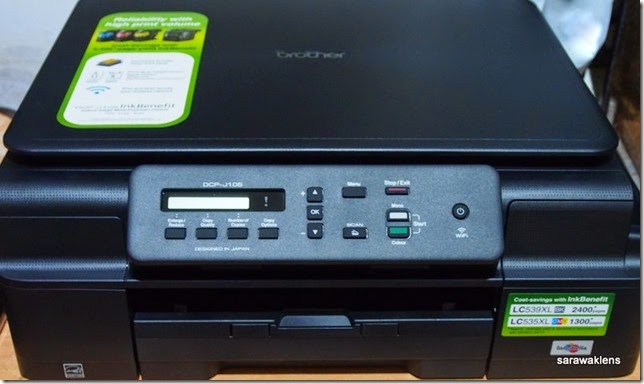
The DCP-J105 is a boxy all-in-one, it takes up a fair amount of desk real estate with its large footprint.

I finally decided to go with the Brother because of the following features:
1. High yield cartridges (L539XL BK and L535XL CMY - RM30 each)
2. Wifi capability
3. All-in-one design
4. Enlarge/Reduce copy functions (important to me)
5. Easy ink-cartridge access

Setting up the printer was fairly easy although I had to do it twice because I first set it up for wifi use and then when I wanted to switch to USB use, I had to install from the included CD again to get the ControlCenter4 software to recognize the scanner.

Wifi/Wireless
Wifi setup can be confusing for people who have never set up a wireless printer before and I found the basic start-up guide to be less than beginner-friendly.

You can connect it to your home network and then simply use the included software to install it as a wireless printer, then print from any computer or tablet/phone on the same network.

Alternatively, you can set the printer to create an ad-hoc connection with your computer or laptop and print directly to it via this wireless connection. No problems with my desktop, but when trying a new ad hoc connection (after resetting network settings so I can start fresh) with my tablet, the connection could not be detected.

Brother_DCP_J105_review_2
The scanner takes A4, Letter and Legal sizes and has reduce/enlarge and ID-copy functions.

Copy Function
The scanner scans documents from left to right as opposed to the right-to-left system I am more used to. For A4 documents, it will only scan a width of 204mm and not the full document so if you have a borderless A4 photo to be scanned, expect the sides to be cut off. To scan the entire document, you need to do a pre-scan and select the size manually using Brother’s included ControlCenter4 software.

A major reason why I chose this model over the other competing ones which are similarly priced is that the Scan/Copy function is more than just basic black or colour copying. There are a number of useful functions such as reduce/enlarge (25%-400% in 1% increments), preset zoom settings, n-in-1 copy up to 4-in-1 in either landscape or portrait mode and poster (3x3) copy, all of which are actually very useful and can be done right on the unit without a computer.

The n-in-1 and ID copy functions are actually more useful than one would think. For example, if you need to make a quick copy of your IC or student ID, simply select this setting and the printer will then prompt you to first scan one side, followed by the other, then the printer would automatically arrange both sides and print them on one sheet of paper. You do not have to manually place the ID on a lower part of the scanner or feed the paper again to print the other side.

The 3 x 3 poster function will scan something such as an A4 colour photo and then automatically print it on 9 pieces of paper with overlapping sections for you to join/paste them together later.

The included ControlCenter4 software automatically saves scanned documents in the “My Pictures/ControlCenter4/Scan/” folder (destination folder and other settings can be changed manually). The scanner scans up to 1200x1200dpi.

Print quality
Here are some samples of the three quality settings for text documents on plain paper.

Fast setting (draft)
Brother J105 Print quality 3

Normal setting
Brother J105 Print quality 2

Best setting
Brother J105 Print quality 1

The best setting, as expected, produces very good looking text documents. While they won’t be mistaken for laser print-outs, they are good enough for many school and college assignments and maybe the occasional official correspondence. I wouldn’t count on it if you need to prepare a portfolio or document to impress potential clients, however.

The downside of using the best-mode for text is that a single text-only page can take the J105 nearly 2 minutes to complete. This is unacceptably slow. If you have a 60 page text-heavy document to print, it will take nearly 2 hours to complete the task in Best mode.

For everyday usage, the Normal quality setting is more than sufficient and the printer is quite speedy when printing text documents at this setting, churning out pages at a rate of about 6 seconds per page or about 10 pages per minute. Brother claims 11 ppm on the box so it’s quite close. Speed will depend on how much text is on the page (I printed a 572 word article, Times New Roman size 12, A4).

Expectedly, Fast (draft) mode is even faster at about 4 seconds per page and produces much better output than Epson’s printers in draft mode.

Photo quality
It must be said that the J105 is not marketed as a photo printer. It can only produce passable photos. It’s a pity because the grain is actually very fine (smallest ink droplet is 1.5 picolitres, in comparison, Epson’s ink tank L series such as L210, L350 etc. (except L800), produce minimum 3 picolitre droplets resulting in highly visible grain).

However, the colour is very disappointing especially blacks. I believe the printer uses all three colours (CMY) to produce composite black for photos, resulting in dark areas that look a very muddy and ugly dark brown with little detail. Other colourful areas in a photo might look nice, but the muddy black (more like ugly brown) spoils the overall photo.

Photos also have a rather pronounced yellowish cast. Adjustingthe red/green/blue colour sliders in the driver might correct this but I have so far yet to find the optimal settings for the photo paper I use.

Colour ink is not waterproof, tried and proven not to be. I can confirm that Brother uses dye-ink for CMY and waterproof pigment-based ink for black. This is probably the reason the printer uses only the three colours (CMY) when printing photos as dye and pigment will not mix well or look good on a photo. The printer will use pigment black for photos only if plain paper is chosen (try using photo paper with plain paper setting and the results will be horrendous to look at).

The printer is capable of printing up to 1200x6000dpi which is quite impressive but it’s really just too bad the photos are not pretty if they have significant dark areas. The J105 has a “Best” photo mode for printing high resolution photos and although it takes an incredibly long time to print a 4”x6” photo (around 14 minutes or more), it does produce photos with barely noticeable grain. This mode, I think, is similar to Epson’s Photo RPM mode.

To help improve printed photo quality, use only high quality papers such as Epson Premium Glossy paper instead of generic papers. I used both and I must say the quality does improve significantly with Epson’s Premium Glossy paper. However, the muddy blacks, though not as bad as with cheaper papers, can’t be helped much. You can also try tweaking the colour setting in the driver, increasing density etc. to help improve quality.

Photos printed on plain paper with the highest quality setting look quite good, considering it is plain paper. Dark areas or black are definitely better than the composite ugly brown-black on photo papers because the printer will use the pigment black ink when plain paper is selected.

Photos which do not have a lot of dark or black areas such as shadows, should look acceptably good when printed on quality paper in the highest mode.

On a printer that costs RM399, it’s a pity that Brother didn’t employ a system such as that used on many of Canon’s mid-range printers such as the MG5570, and that is to use a separate photo-black cartridge for photos in addition to the pigment black cartridge for text. This, probably would have helped the printer produce much nicer photos than it does.

If you do a lot of photo-printing at home besides text documents, do not get this printer.

Speed tests

Text documents
10 pages fast mode, about 45 seconds (not counting first page)
10 pages normal, about 1 minute 9 seconds (not counting first page)
1 page best quality, nearly 2 minutes (very slow!)

Photos
4”x6” photo – Photo mode, photo paper – about 2 minutes
4”x6” photo – Best mode, photo paper – about 14 minutes!! (painfully slow!)
Brother_DCP_J105_review_6
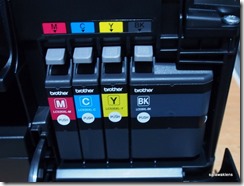
The printer comes with a full set of inks, a super-sized LC539XL for black pigment ink and LC535XL CMY for colour dye-based inks which I believe are dye-based. Black text-only printouts seem to be waterproof but colour printouts are not. Although Brother boasts the colour inks to be high-yield and claim 1300 pages for each cartridge, they actually feel quite light and of normal size compared to my other printers (Canon and Epson). Remains to be seen just how many pages or photos they are good for. The black cartridge is indeed quite large and I expect it to last a good number of pages. Cartridges cost RM30 each.
 
Brother_DCP_J105_review_7
After the ink cartridges are installed, the printer takes about 4 minutes to prime the system and get the inks ready. Once done, a test page will be printed out. Priming uses quite a bit of ink and according to the manual, the first set of cartridges will therefore have only about 75% of ink left. Subsequent new cartridges will not lose this amount as the priming process will no longer be needed.

Brother_DCP_J105_review_4
The large footprint is due to the flushed paper tray which inserts fully into the unit. It holds about 100 sheets. Brother should have included a second back paper feed tray as well as the flushed tray has trouble feeding photo paper or thicker media.

Paper feed and paper jam problems
When printing 4”x6” photos, I experienced paper feed problems frequently. For example, when there are only 1 or 2 pieces in the tray, a jam would almost always occur. To minimize jams, there must be at least 5 or more pieces in the tray and even then, jams still do occur occasionally.

The printer also feeds two pieces of paper at one time more often than acceptable, even after fanning the stack of paper. This can be very annoying if you are using the double-sided or booklet printing feature (manual only, the printer does not have an auto-duplexer). I really do wish it had a second manual or back-loading paper tray.

Brother J100_J105 paper feed problems
Expect to have a fair amount of paper feed problems and jams with the Brother DCP-J100/J105 if you print on photo paper or media other than plain paper. Even with plain paper, the printer will more often than acceptable, pull in two sheets at a time, messing up any double sided print jobs you may have sent to it. The above happened when the printer pulled in two pieces of photo paper (4” x 6”), overlapping them and started printing, resulting in wasted paper and ink.

Further notes
The J105 has useful features like 2-in-1 copy, 4-in-1 copy and ID copy functions which makes copying certain documents easy. It also has a sleep mode as well as an auto-off mode (users can adjust the time it sits idle before it goes into sleep mode or automatically shut off).

The unit will also auto-clean the printhead when it has been idle for too long such as a month. Periodically, it will do mini cleans to maintain print quality by preventing the printhead from clogging. I am not sure how this will play out over time but I suspect it will result in the inks going down faster than one might expect, resulting in far less printable pages than Brother claims, especially for users who do not print frequently.

The printer does not have any card slots or and does not support direct printing via USB/PictBridge.

The plastic cover on the front control panel comes off easily, take care not to accidentally flip it off and damaging it.

In terms of reliability/durability, that remains to be seen as I just got this printer not long ago.

Fade resistance
I will display some photos, text and colour documents openly on my table or on a wall as well as in an album and check for fade resistance and update this review after sometime.

Conclusion
It is a good home printer overall, if you need an all-in-one which you can print lots of text documents on plain paper with, plus the occasional photo. Text quality is reasonably good in Best mode but very slow! Unfortunately, photo quality is only passable. Colour printouts are not waterproof but text documents are. The paper feed problems (especially with photo paper) I experienced were quite annoying, so bear this in mind if you are considering this model or other Brother printers like it.

Brother offers a 3-year carry-in warranty for this unit (additional 3 months for new Brother online account registrations), which is commendable and much longer than some of their competitors. It shows they have faith in their products. Unfortunately, they also use the Highpoint service network here in Malaysia which I had a bad experience with.

Brother J100_J105 ink status monitor
Ink status after about 30 4” x 6” colour photos, some A4 plain paper photos, and roughly 200 pages of text and mixed documents. Some ink was used for priming the system during initial set-up, subsequent cartridges should have better yield than the first set.

I have printed about 30 colour photos (4” x 6”) and a few A4 colour pictures on plain paper and a number of text documents. Black cartridge still quite full (down by about 1/5) but both Cyan and Yellow have gone down by about half and Magenta by about 1/3 (note that some ink was used during initial set-up). The BK cartridge is definitely a high yield unit but the colour carts are not, compared to printers of other makes. Just by looking at and holding the cartridges, you’d know.

Get this unit if you need a wifi-enabled all-in-one printer equipped with more than just basic copy functions and you print lots of text documents frequently.

Do not get it if you print a lot of photos besides text documents or if you print infrequently.

Overall, I give it 60/100 Downgraded to 35/100 (FAIL). See update above for reason.

What other printer to consider?
I do not own the Canon MG5570 but it does look like a very good alternative, at least on paper. The MG5570 uses individual cartridges which cost around RM44 (cheaper if you buy online) each. Together, Canon claims they are good for about 100 or so 4” x 6” (4R) photos. Though the inks are more expensive, they are Canon ChromaLife 100+ inks which are fade resistant. There are also third party refillable cartridges for it. Plus, because the MG5570 uses 5 cartridges (pigment BK plus photo CMYBK), printouts should look much better than those by the J100/J105. I am not sure if the copy features are as good as those on the J105, though.

What about Epson Ink Tank L series? 
If you require borderless printing, these are automatically out of the question. Only the L800 6 colour single function printer can do borderless printing but it is expensive (about RM850-900) and according to some review sites and forums, the L inks have poor fade resistance (look up a Russian test which shows the L800 inks to start fading within days). There’s also an Indonesian site with fade tests of the output from the cheaper L series printers and they found the inks to fade badly after just 2 months if prints were displayed on a wall, which is something many of us like to do. However, prints kept in an album or laminated should last a lot longer.

Anyone own the MG5570 or an Epson L800? Care to share your experience?

Hope this review was useful to you if you were searching for one to help you decide! Cheers!

Related Posts Plugin for WordPress, Blogger...